Wireless CarPlay Adapter Audio Delay: Why It Happens & How to Fix It
Published on
You jump into your car, the engine starts, and your iPhone automatically pairs to your dashboard without taking your phone out of your pocket. It feels futuristic—until you tap "Next Track" on your steering wheel controls and wait a agonizing second or two for the song to switch. Or worse, you try watching a video while parked, and the lip-sync is completely off.
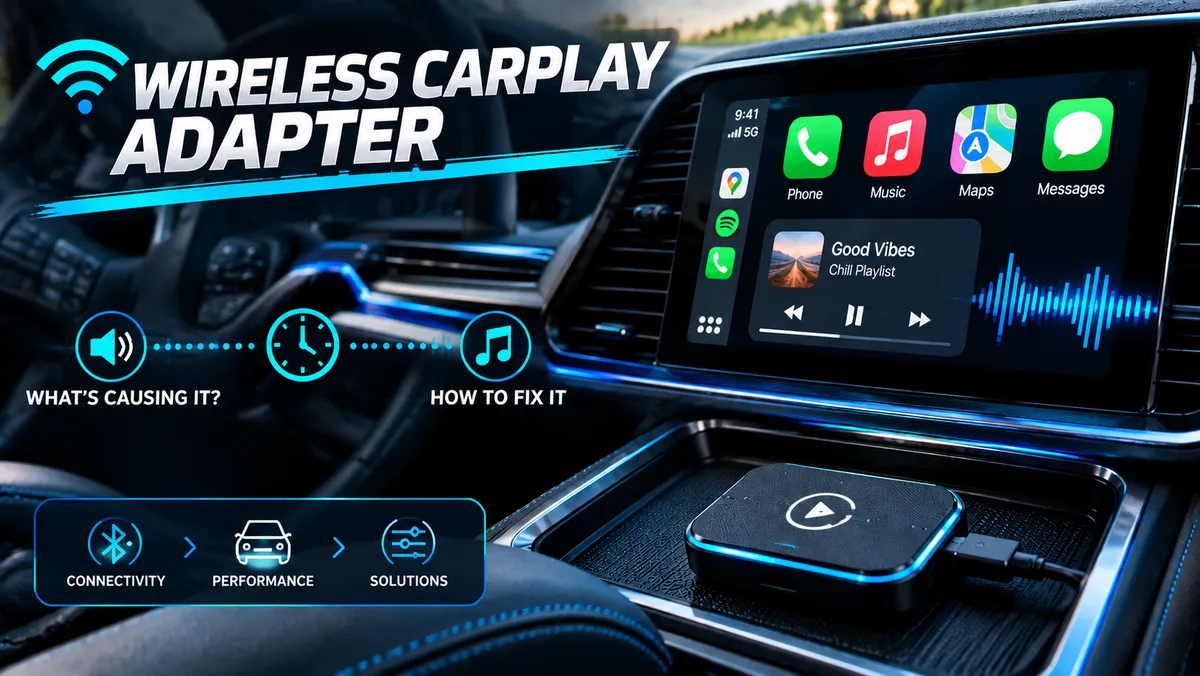
If you are dealing with wireless carplay adapter audio delay, you aren't alone. Audio latency is the single most common complaint among drivers switching from factory wired systems to aftermarket wireless dongles.
In this deep-dive guide, we will unpack the technical reasons behind wireless carplay adapter audio lag, explore whether a true zero-latency solution exists, and walk you through exact step-by-step troubleshooting techniques to reduce latency on your system.
Why Is My Wireless CarPlay Lagging?
To understand why is my wireless carplay lagging, you first have to understand how Apple CarPlay handles wireless data transmission compared to a physical USB cable.

Carlinkit 5.0 (2Air) Wireless CarPlay & Android Auto Adapter
When using a standard wired CarPlay connection, audio and visual data stream directly through the Lightning or USB-C cable with near-zero latency (typically under 50 milliseconds). However, when you introduce a wireless adapter, your phone must broadcast data over Bluetooth (for initial handshaking) and 5GHz Wi-Fi (for high-bandwidth data transfer).
[iPhone] ---> 5GHz Wi-Fi Stream ---> [Wireless Dongle] ---> USB Data ---> [Head Unit]
Here are the three primary causes of wireless CarPlay latency:
- Apple’s Built-in Audio Buffering Spec: Apple intentionally designed CarPlay with an audio buffer delay (usually 1,000ms to 2,000ms) for media audio. This buffer prevents your music or podcast from stuttering when Wi-Fi interference occurs while driving.
- Hardware Decoding Bottlenecks: The tiny chipset inside low-cost adapters needs time to process the incoming wireless signal and transcode it into a standard wired CarPlay protocol that your car's head unit can understand.
- Wi-Fi Channel Interference: Dense urban areas, rival Bluetooth devices, or weak 2.4GHz/5GHz bands cause packet re-transmissions, leading to stutter or dynamic latency spikes.
Many drivers ask: do wireless carplay adapters work reliably despite this? The answer is yes—for navigation and background music, most users don't notice the delay. But for button responsiveness and media playback, latency can become frustrating.
Can I Make Wired CarPlay Wireless Without Audio Delay?
A question we answer daily at Auto Tech DealsReview is: can i make wired carplay wireless without sacrificing performance?
Yes, virtually any car manufactured after 2016 with factory wired CarPlay can be converted using a plug-and-play USB adapter. However, expecting zero millisecond latency over airwaves is realistic for phone calls and navigation, but technically impossible for media playback due to Apple's mandatory stream buffering.
Understanding Acceptable Latency
A delay of 300ms to 800ms is considered normal and acceptable for wireless media playback. Delays exceeding 1.5 to 2 seconds indicate a configuration issue, outdated firmware, or slow adapter hardware.
While you cannot eliminate 100% of wireless propagation delay, high-quality adapters compress this buffer down to a level where steering wheel button presses feel almost instantaneous.
How to Fix Wireless CarPlay Audio Delay (Step-by-Step)
If your adapter latency has suddenly spiked or you are dealing with wireless carplay connection issues, follow this step-by-step guide on how to fix wireless carplay audio delay.
Step 1: Update Your Adapter's Firmware
Adapter manufacturers regularly push firmware updates to optimize memory allocation and lower processing latency.

Vantrue N4 Pro S 4K 3 Channel
- Night Vision 4.0
- 360° Rear Camera
- 24/7 Protection
- Connect your iPhone to the wireless adapter's Wi-Fi network while inside your vehicle.
- Open Safari and type the backend IP address into the address bar (typically
192.168.50.2or192.168.1.101). - Tap Check for Update and download the latest version.
- Allow the device to reboot completely before testing.
Step 2: Adjust the Audio Delay / Audio Quality Settings
Inside the backend settings menu (accessed via the IP address above), most adapters feature hidden developer toggles specifically designed to tune audio streams:
- Audio Delay / Frame Setting: Change this setting from default (often 1000ms) down to 300ms or 500ms. Lowering this value reduces audio latency, though setting it too low may cause audio popping or dropouts in high-interference areas.
- Audio Mode: Switch from "Synchronization" to "CD / Normal" mode if offered.
Step 3: Switch Wi-Fi Band to 5.8GHz
Ensure your adapter is operating strictly on the 5GHz or 5.8GHz Wi-Fi band rather than 2.4GHz. 2.4GHz has far higher latency and suffers from heavy interference from local Bluetooth signals.
Step 4: Clear Bluetooth & Network Cache
Sometimes persistent lag is caused by corrupted network handshakes between iOS and your vehicle:
- On your iPhone, go to Settings > General > Transfer or Reset iPhone > Reset > Reset Network Settings.
- Unpair your car's native Bluetooth and forget the adapter's network.
- Perform a fresh pair from scratch.
The Best Wireless CarPlay Adapter with Lowest Audio Delay
Carlinkit 5.0 (2Air) Wireless CarPlay & Android Auto Adapter
Not all wireless adapters are engineered equally. Cheaper knock-off dongles often run outdated single-core processors with insufficient RAM, resulting in multi-second lag. If you are searching for a wireless carplay adapter no audio lag experience, you need a unit running a dual-core or quad-core processor dedicated to real-time transcoding.
Here is our top recommendation for the best wireless carplay adapter with lowest audio delay currently on the market:
Should You Search for a "Wireless CarPlay Adapter Near Me"?
When driving around with broken audio sync, it’s tempting to search online for a wireless carplay adapter near me to buy at a local brick-and-mortar retail store.
While big-box electronics retailers do carry a few basic brands, they often stock older hardware revisions at inflated prices. Purchasing online gives you direct access to hardware built with the newest Wi-Fi 6 / 5.8GHz chipsets, which are crucial for minimizing wireless carplay adapter audio delay. Always ensure the listing explicitly specifies 5.8GHz transmission and configurable latency settings.
Frequently Asked Questions
Why is phone call audio delayed on my wireless CarPlay adapter?
Phone call latency is handled separately from media audio by iOS. If callers hear an echo or you experience a 2-second voice delay during calls, access your adapter’s web settings (192.168.50.2) and switch the Media Sound Quality or Call Mode setting from "Software" to "Hardware" decoding.
Will a wireless CarPlay adapter lag when watching videos?
Yes. Because Apple's native CarPlay protocol was never intended for streaming video, running third-party video hacking apps or video playback on a wireless adapter will almost always result in visible lip-sync delay. For perfect video sync, a wired connection or an Android AI Box with an HDMI input is required.
Does changing the buffer size cause audio stuttering?
If you lower the buffer latency below 300ms in your adapter's backend settings, you may experience brief audio cutouts or crackles when passing near cell towers or power lines. If this happens, bump the setting back up to 500ms for a balance of stability and fast response times.
Final Verdict
Dealing with wireless carplay adapter audio delay comes down to balancing wireless convenience against transmission physics. While a slight delay (300ms to 500ms) is normal for any wireless audio bridge, long delays exceeding a second can almost always be fixed by tweaking your adapter's frame delay settings, updating firmware, or upgrading to a modern 5.8GHz adapter like the Carlinkit 5.0.
Take 10 minutes to log into your adapter's backend settings today—you might be surprised by how much snappier your dashboard experience becomes!